

Overview
The Noveum integration node automatically exports every completed call to Noveum as a full observability trace. Each call becomes a structured trace with per-turn spans for STT, LLM, and TTS — transcripts, prompts and completions, token usage, latency breakdowns, interruptions, and (optionally) the call audio itself, ready for playback and audio-level evaluation on the Noveum platform. No custom code required. The export is post-call and bring-your-own-key: while the call is live, Dograh only records data locally — nothing is sent to Noveum and no latency is added to the conversation. After the call finishes, the trace and audio are uploaded in the background using the Noveum API key you configure on the node.Prerequisites
- A Noveum account with an API key
- A Dograh voice agent workflow
Setup
1. Get your Noveum credentials
Log in to Noveum and gather two values: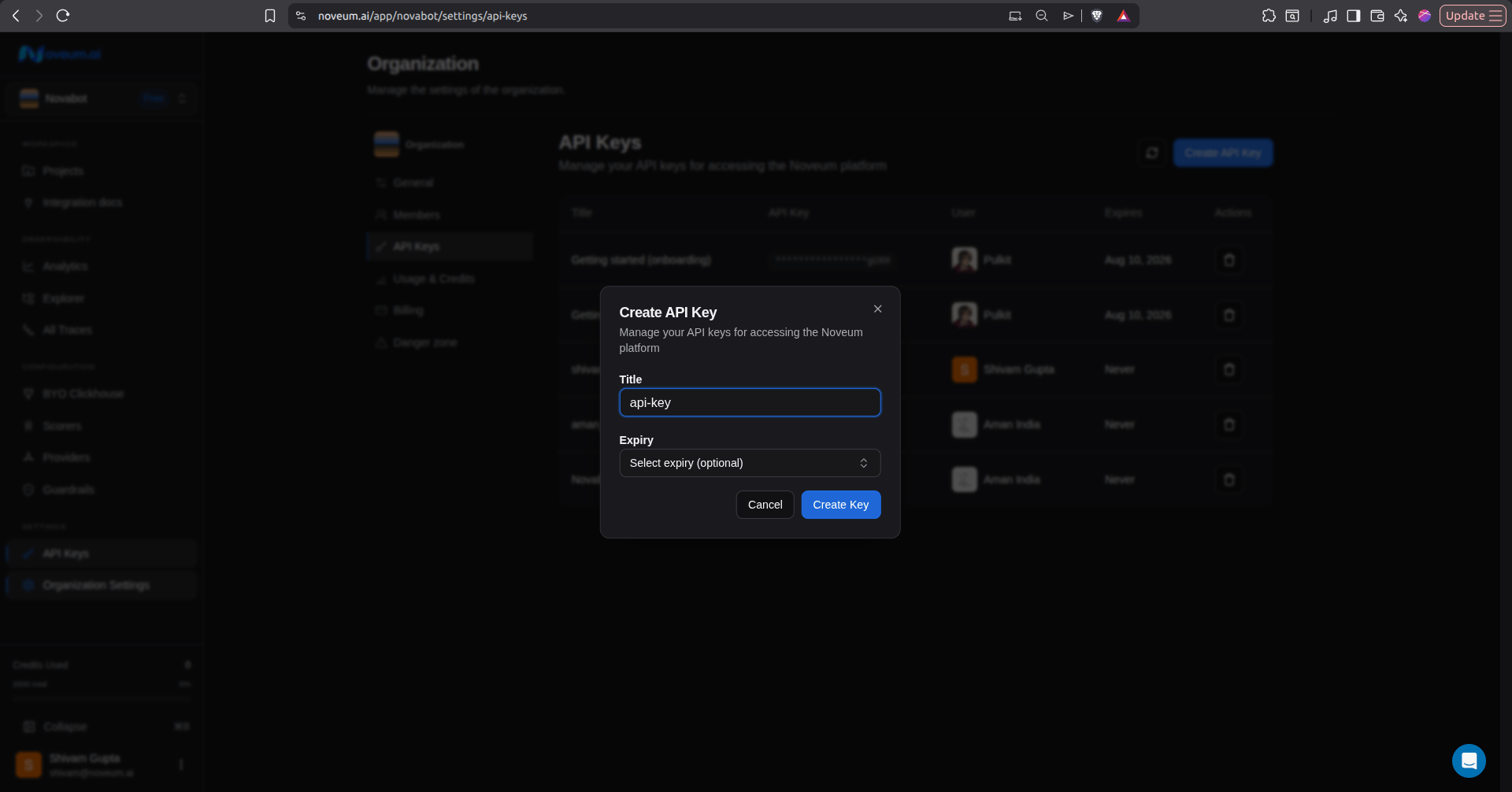
2. Add the Noveum node to your workflow
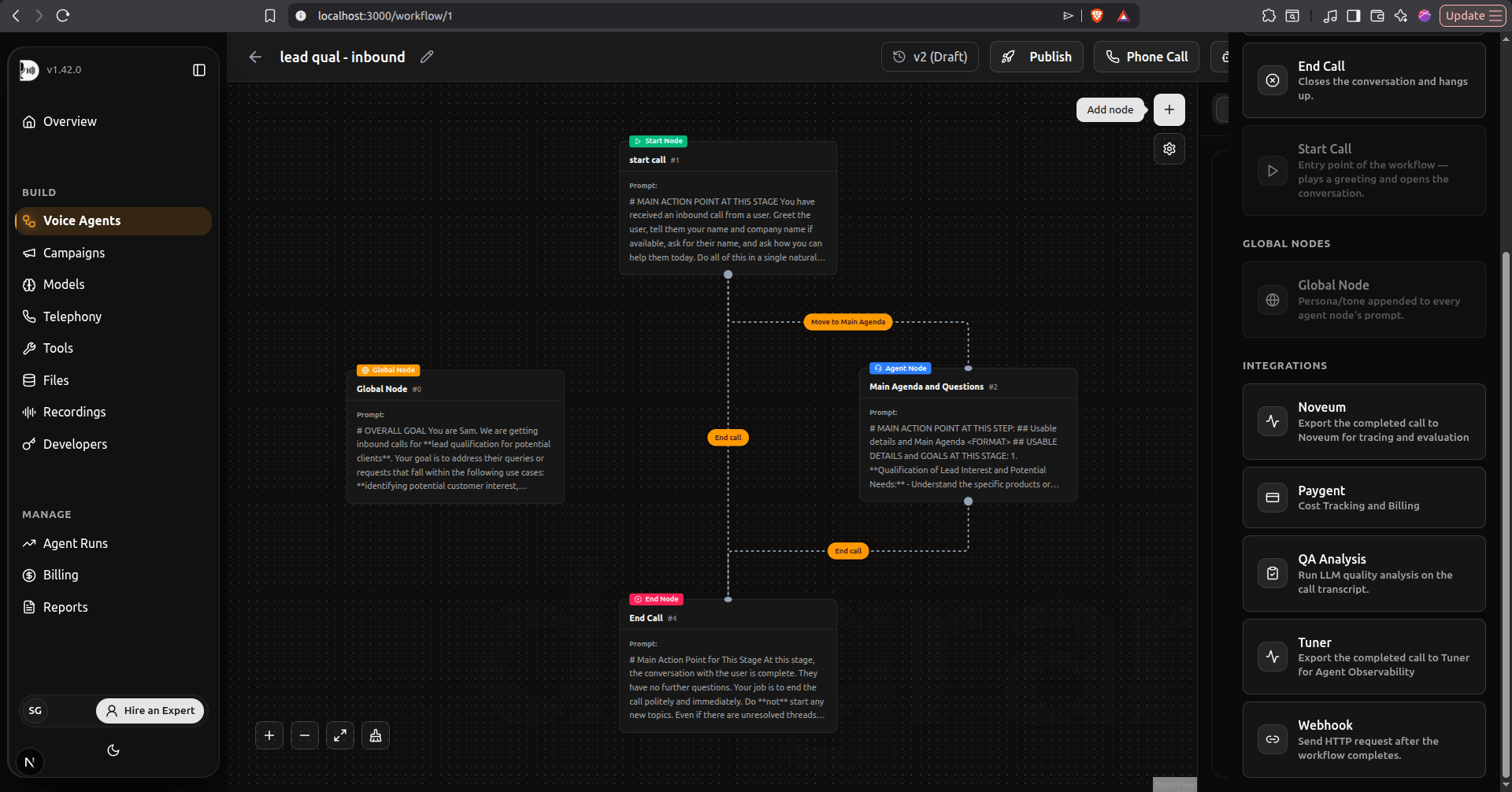
In your Dograh workflow editor, click Add node and scroll to the Integrations section. Select Noveum.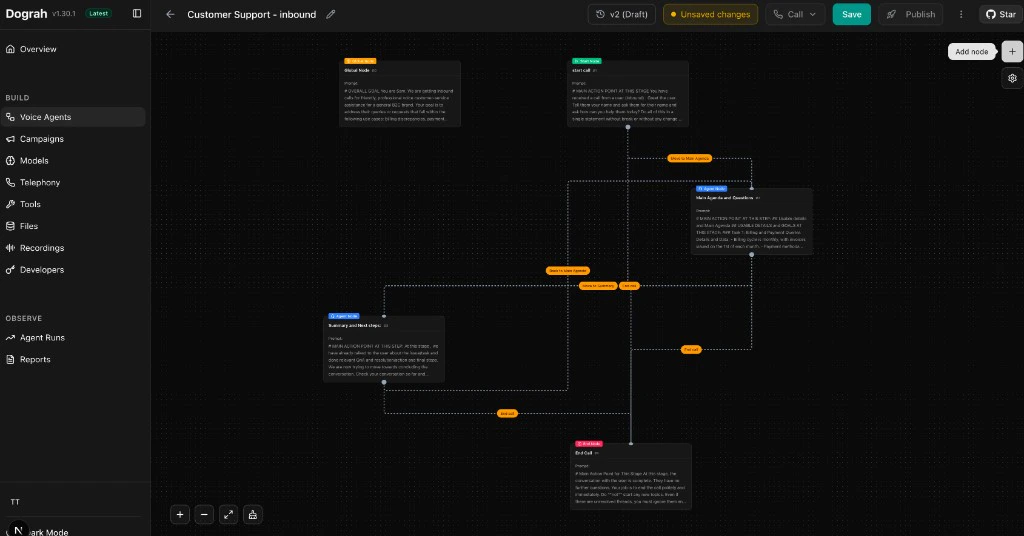
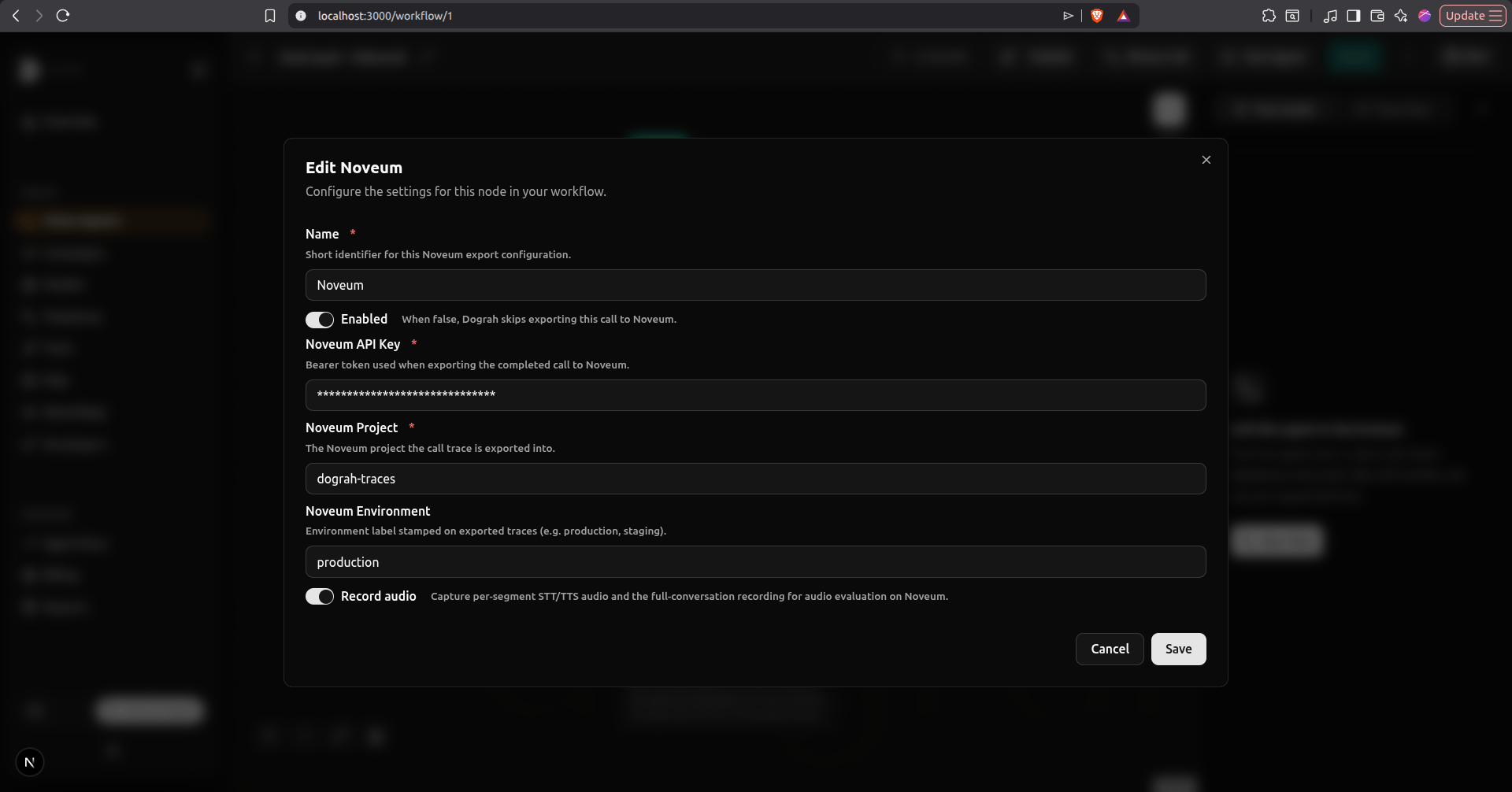
3. Configure the node
Click on the Noveum node and fill in the following fields:- Noveum API Key — Your API key from step 1
- Noveum Project — The Noveum project the call traces are exported into
- Noveum Environment — Environment label stamped on exported traces (defaults to
production; usestaging,development, etc. to separate environments) - Record audio — Capture per-segment STT/TTS audio plus the full-conversation recording for audio evaluation on Noveum (on by default)
- Enabled — Toggle on to activate the export
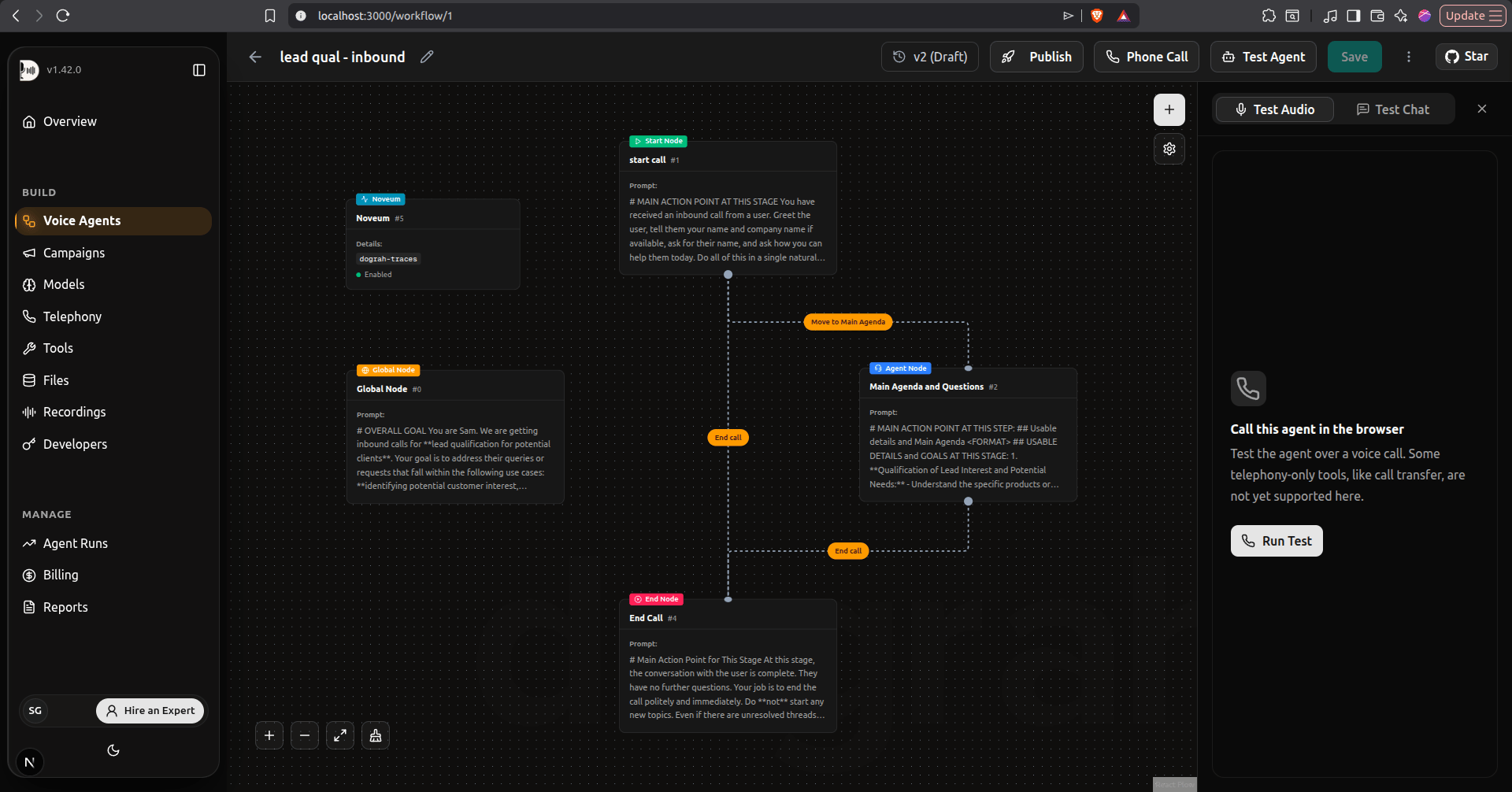
4. Verify the connection
Make a test call through your agent. Once the call completes, open your project in the Noveum dashboard — the call appears as a new trace within a few moments. Open it to see the turn-by-turn timeline with STT, LLM, and TTS spans, and play back the captured audio.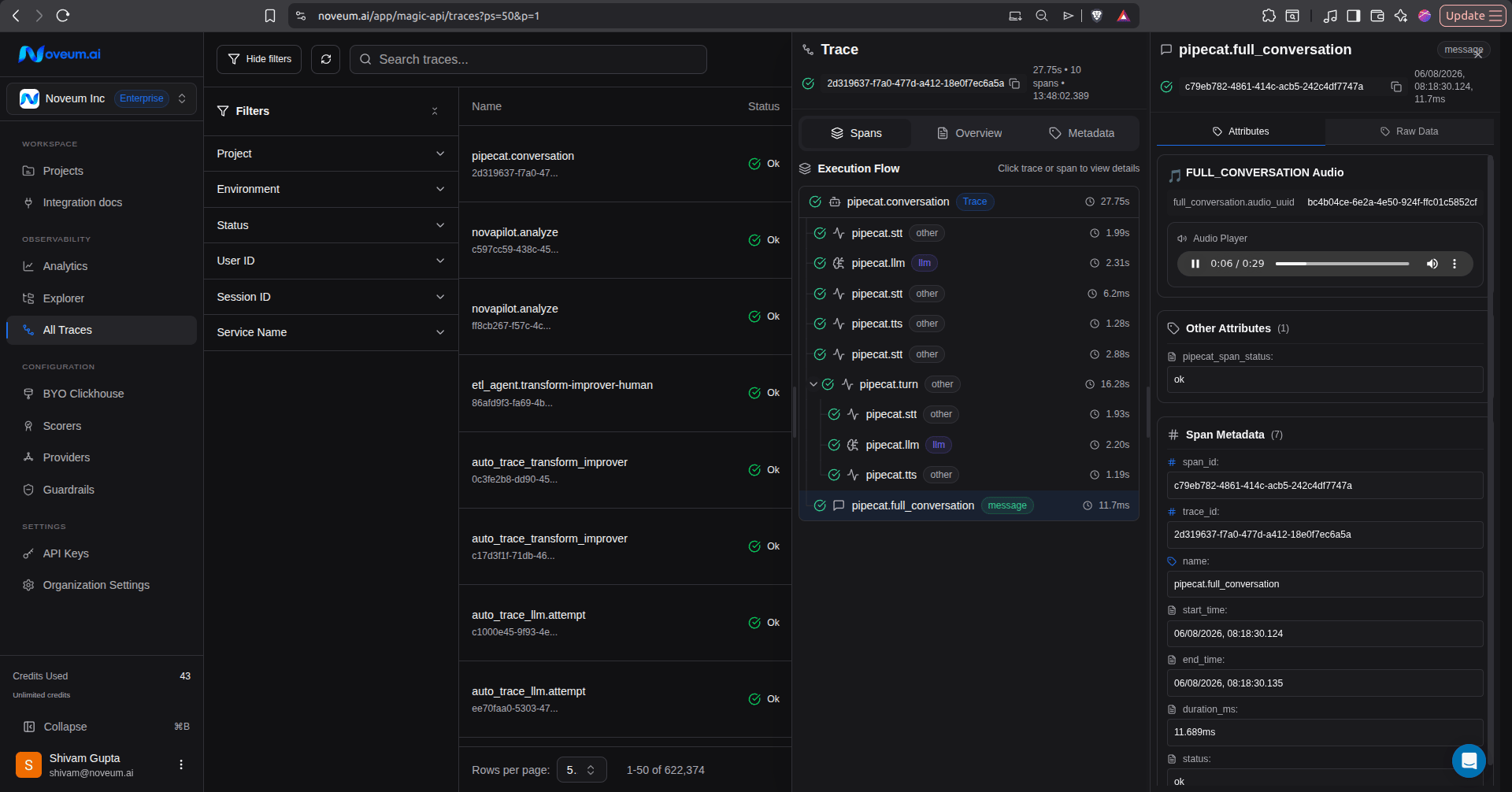
What gets exported
Each call produces one conversation trace containing:
Once the traces are in Noveum you can inspect and replay calls, build evaluation datasets from production traffic, and run automated scorers over transcripts and audio to track agent quality over time.
Disabling the integration
To temporarily stop exporting calls to Noveum, open the Noveum node configuration and toggle Enabled off. Your credentials are preserved — toggle it back on anytime to resume.Troubleshooting
Learn more
- Noveum — AI observability and evaluation platform
- Noveum documentation — Complete platform docs, including the Dograh integration guide