

Overview
The Tuner integration node automatically sends your completed call data (transcript, metadata, and call outcomes) to Tuner after each call finishes. This lets you monitor agent performance, run evaluations, and track quality trends without any custom code. Once the node is configured, you can also let Tuner call your agent with generated caller scenarios and score how it handles them — see Simulations below.Prerequisites
- A Tuner account with an active workspace
- A Dograh voice agent workflow
Setup
1. Create an agent in Tuner
Log in to Tuner and create a new agent. When configuring the agent, set the Provider to Dograh. Enter your Agent Name and choose the Call Direction (Inbound or Outbound) for your setup. The Agent Remote ID is auto-generated after you create the agent.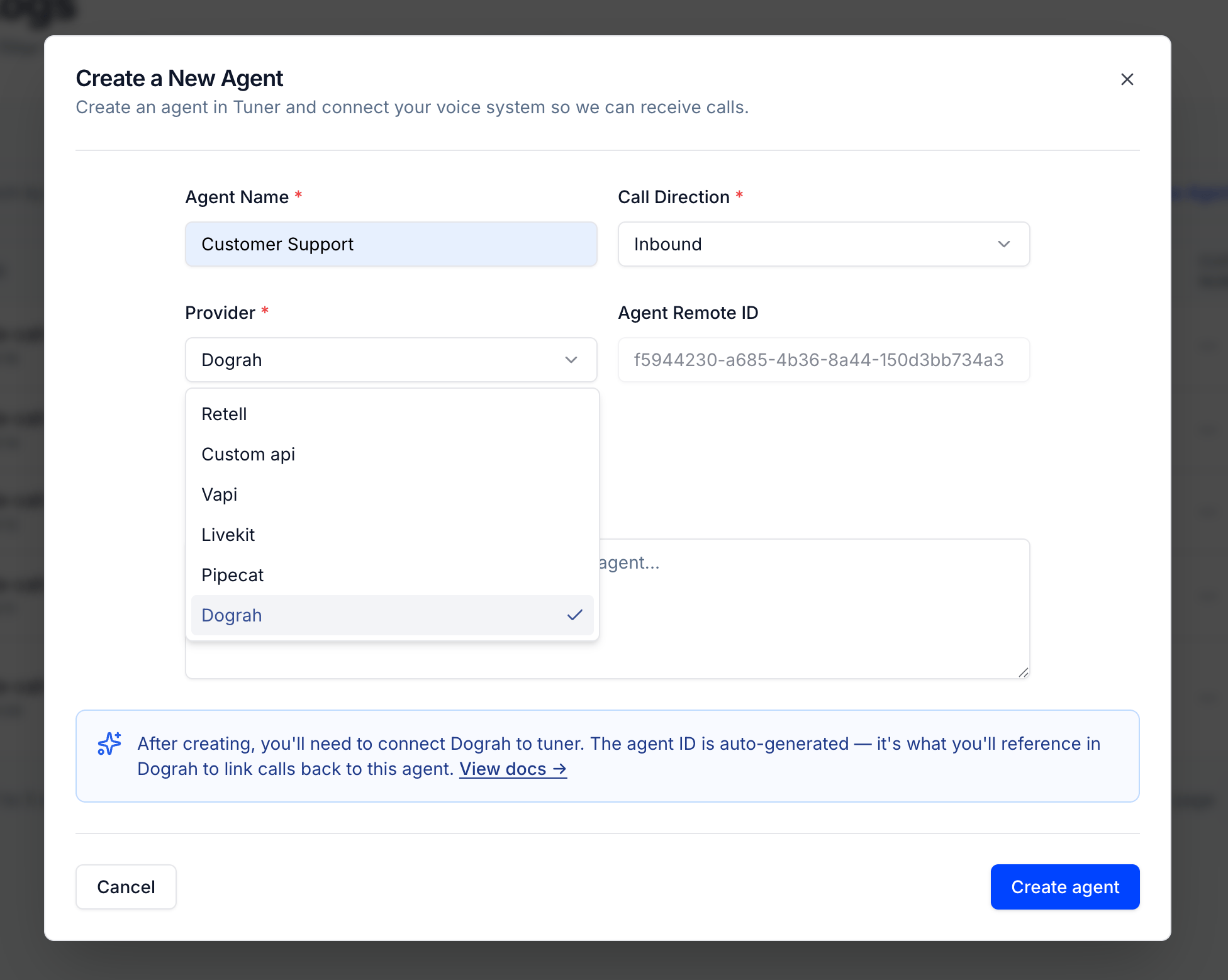
2. Gather your Tuner credentials
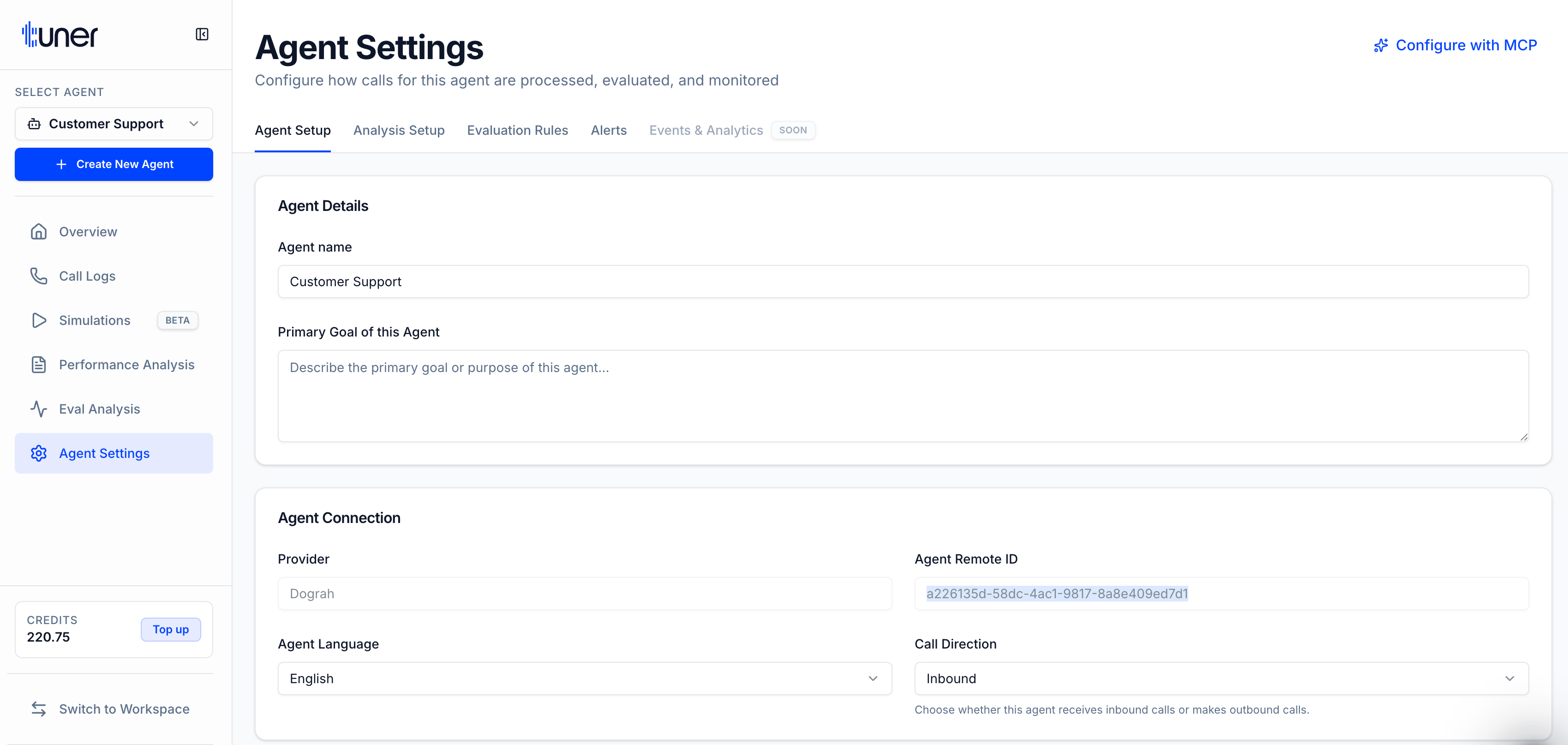
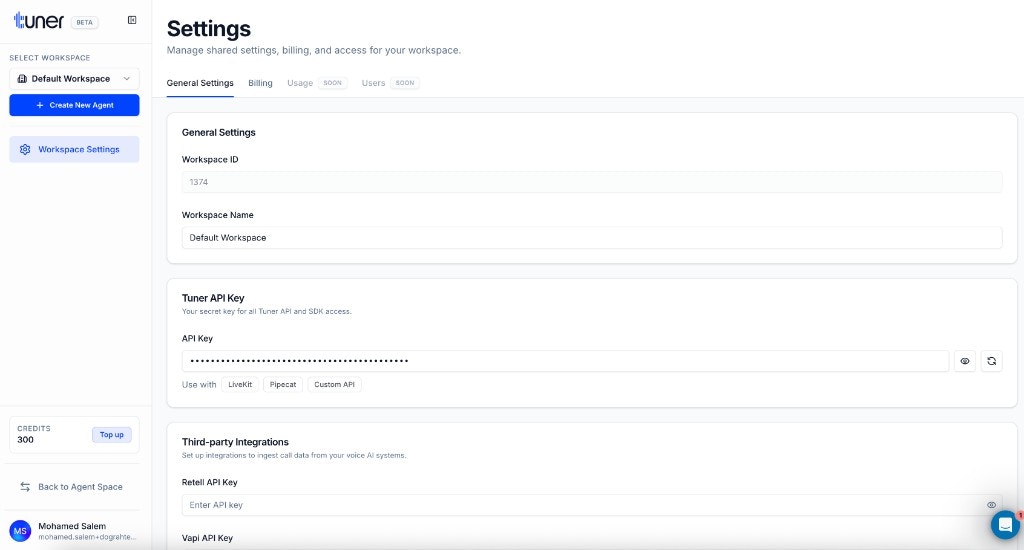
You’ll need three values from your Tuner account:
Agent Remote ID — open Agent Settings for your agent:
3. Add the Tuner node to your workflow
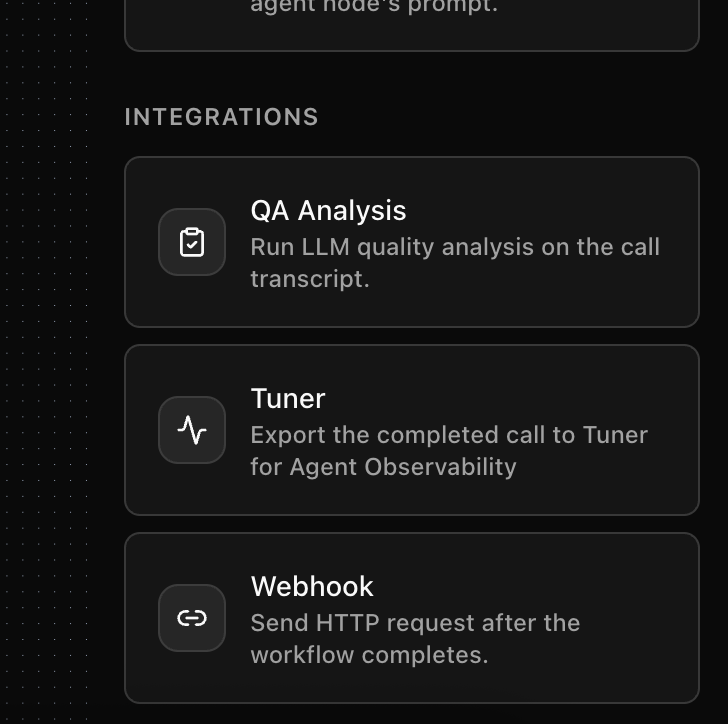
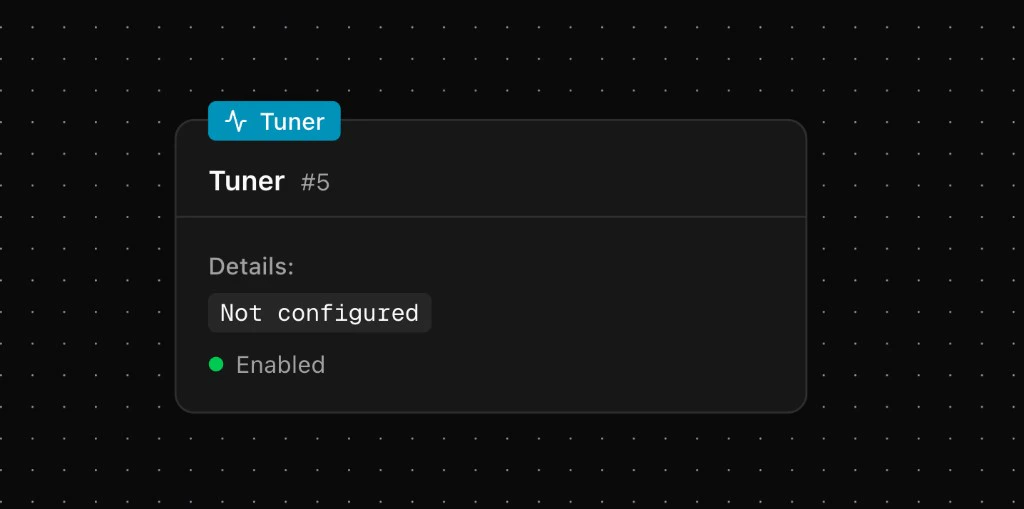
In your Dograh workflow editor, click Add node and scroll to the Integrations section. Select Tuner.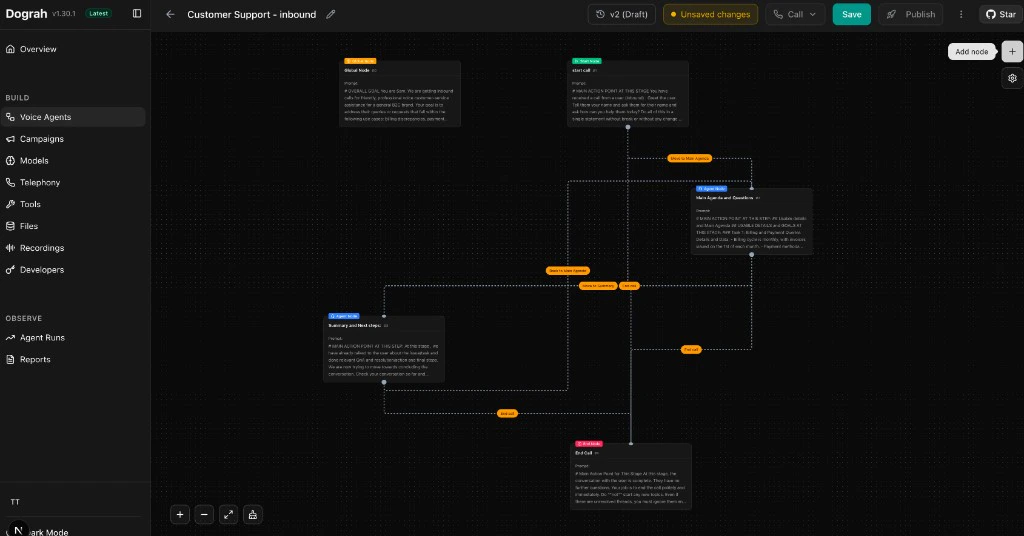
4. Configure the node
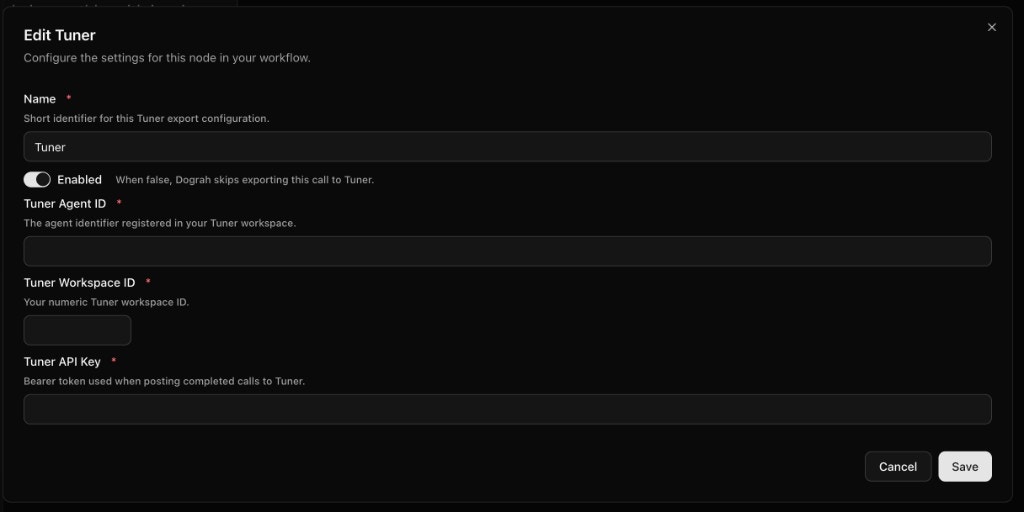
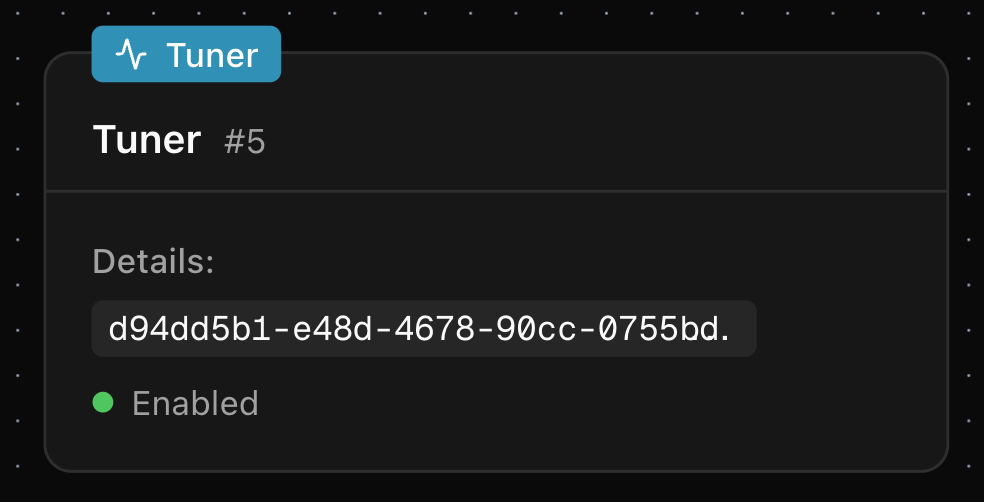
Click on the Tuner node and fill in the following fields:- Tuner Agent ID — The Agent Remote ID from Tuner
- Tuner Workspace ID — Your numeric workspace ID
- Tuner API Key — Your workspace API key
- Enabled — Toggle on to activate the export
5. Verify the connection
Make a test call through your agent. Once the call completes, check the Call Logs tab in your Tuner agent dashboard. The call should appear within a few moments.Simulations
Everything above sends real calls to Tuner. Simulations run the other direction: Tuner places a call into your agent over SIP, plays the part of a caller following a generated scenario, and scores the result. Your agent answers exactly as it would for a customer. Dograh does not speak SIP itself — Cloudonix does it on Dograh’s behalf. So the address Tuner dials belongs to Cloudonix, and what you set up below is a route through it to one specific agent.Simulations use the inbound path, which runs on the Cloudonix SIP domain
Dograh provisions for every organization. You do not need a SIP carrier or a
phone number — unlike outbound calling, which requires your own trunk. See
Dograh Managed SIP.
Before you start
- The Tuner node configured and enabled on your workflow, as set up above
- In Tuner, the same agent with its Call Direction set to Inbound
- An agent that already works — test it from the agent editor first
1. Add an extension for simulations
Go to Telephony configurations and open Dograh Cloudonix SIP. Under Phone numbers, choose Add phone number and enter a short extension such as9001.
You do not need a real phone number. That field accepts SIP URIs and plain extensions alongside PSTN numbers, and an extension is the simplest thing to point a simulation at. Dograh registers it with Cloudonix for you.
2. Point the extension at your agent
Edit the extension you just added, set its Inbound workflow to the agent that should answer, and save. This is the step that tells Cloudonix where to route calls for that extension.3. Publish the workflow
In the workflow editor, choose Save, then Publish.4. Build the SIP URI
Expand SIP connectivity on the configuration page, choose your region, and copy the inbound hostname. Combine it with the extension from step 1:
Set the region before copying anything — every value on the panel is region-specific, and the port changes with it:
Your inbound hostname accepts calls without a password — being unguessable is
what protects it. Treat it as sensitive and share it only with systems that
need to call your agents.
5. Save the URI in Tuner
In Tuner, open Agent Settings → SIP Settings, paste the address into SIP URI, and choose Verify & Save. Tuner immediately places a short test call, so this single action checks the whole path. Leave Username and Password empty — Dograh’s inbound endpoint does not use SIP authentication.Known issue in Tuner. With both auth fields blank, verification currently
fails with “endpoint did not answer”. Entering any non-empty values — for
example
tuner and tuner — works around it. Dograh never checks them, so
the values are irrelevant. Clear both fields once Tuner ships the fix.6. Run a simulation
Start a run from Tuner’s Simulations tab. Each scenario becomes a real call into your agent, and completed calls appear in that table with transcript, latency, and evaluation results.How calls are matched to scenarios
Nothing to configure — this is automatic. Cloudonix reports the caller’s SIP call id to Dograh, and Dograh includes it when it exports the finished call. Tuner uses it to attach the call to the scenario that placed it. Without it, the call would still be ingested, just filed as ordinary production traffic.Disabling the integration
To temporarily stop exporting calls to Tuner, open the Tuner node configuration and toggle Enabled off. Your credentials are preserved — toggle it back on anytime to resume.Troubleshooting
Simulation issues
Self-hosted deployments
Cloudonix must reach your backend over the public internet twice per call: once for the webhook when the call arrives, and again for the audio stream. A backend onlocalhost receives neither.
The address is recorded by Cloudonix when you save the inbound workflow, so whenever your public address changes you must do both of these:
- Update
BACKEND_API_ENDPOINTand restart the backend - Re-save the inbound workflow on the extension, which pushes the new URL to Cloudonix
603. A tunnel with a fixed hostname avoids it entirely.
Learn more
- Tuner — The observability, simulation, and testing layer for voice
- Tuner documentation — Complete Tuner platform docs