> ## Documentation Index
> Fetch the complete documentation index at: https://docs.dograh.com/llms.txt
> Use this file to discover all available pages before exploring further.
# Tuner Integration
> Connect Dograh to Tuner — the observability, simulation, and testing layer for voice
## Overview
The Tuner integration node automatically sends your completed call data (transcript, metadata, and call outcomes) to Tuner after each call finishes. This lets you monitor agent performance, run evaluations, and track quality trends without any custom code.
## Prerequisites
* A [Tuner account](https://app.usetuner.ai) with an active workspace
* A Dograh voice agent workflow
## Setup
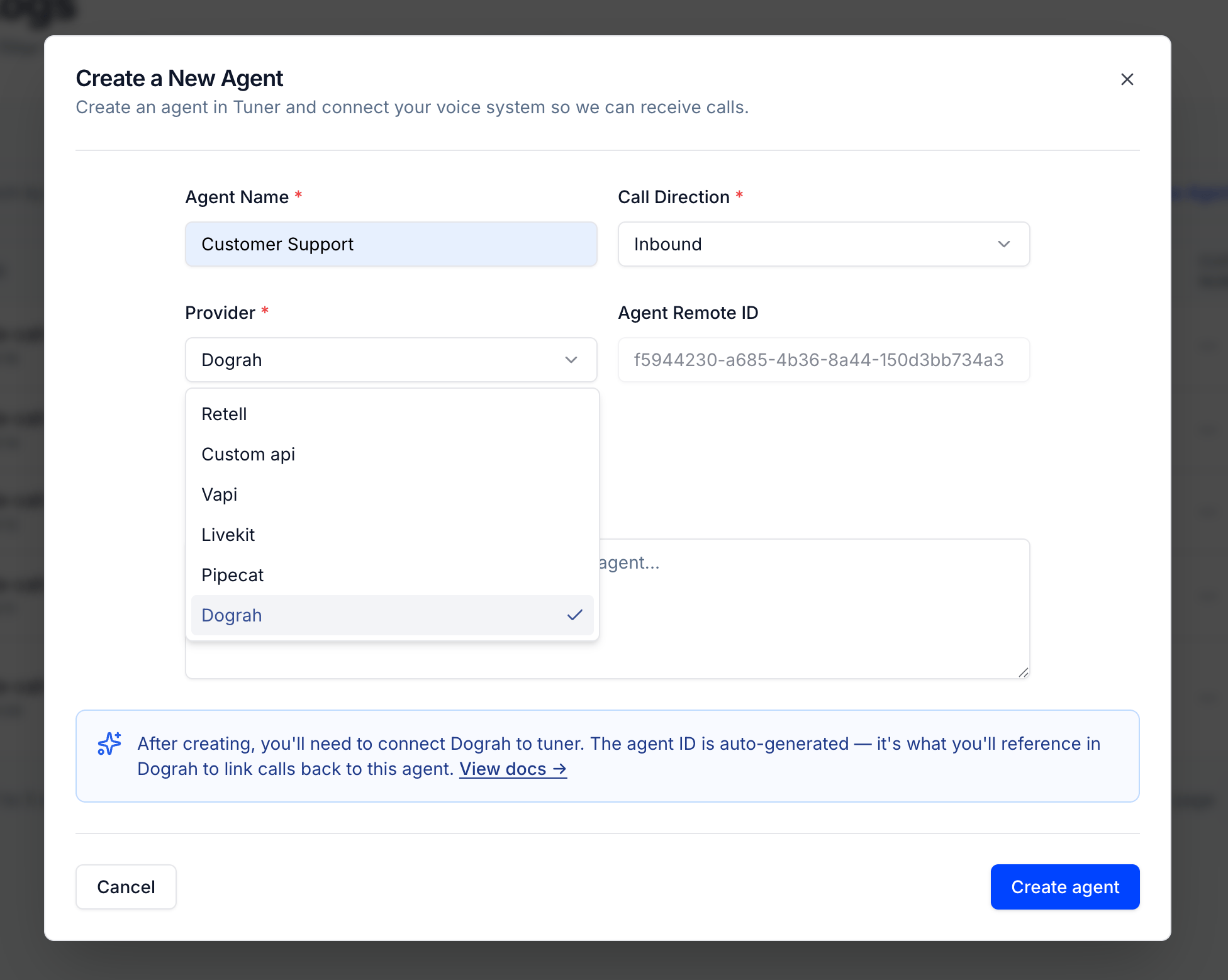
### 1. Create an agent in Tuner
Log in to [Tuner](https://app.usetuner.ai) and create a new agent. When configuring the agent, set the **Provider** to **Dograh**. Enter your **Agent Name** and choose the **Call Direction** (Inbound or Outbound) for your setup. The **Agent Remote ID** is auto-generated after you create the agent.
### 2. Gather your Tuner credentials
You'll need three values from your Tuner account:
| Credential | Where to find it |
| ---------------- | ---------------------------------------------------- |
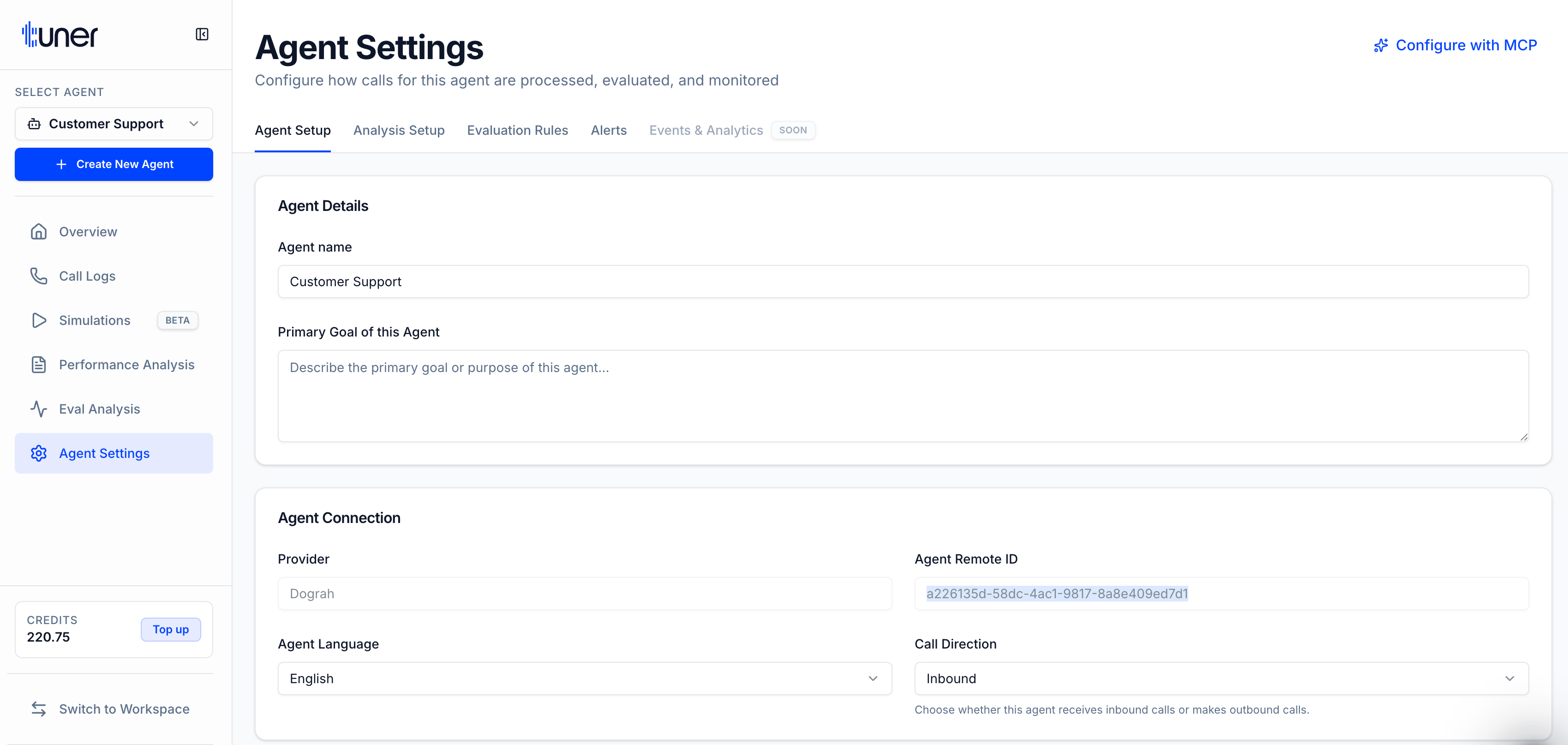
| **Agent ID** | Agent Settings → Agent Connection → Agent Remote ID |
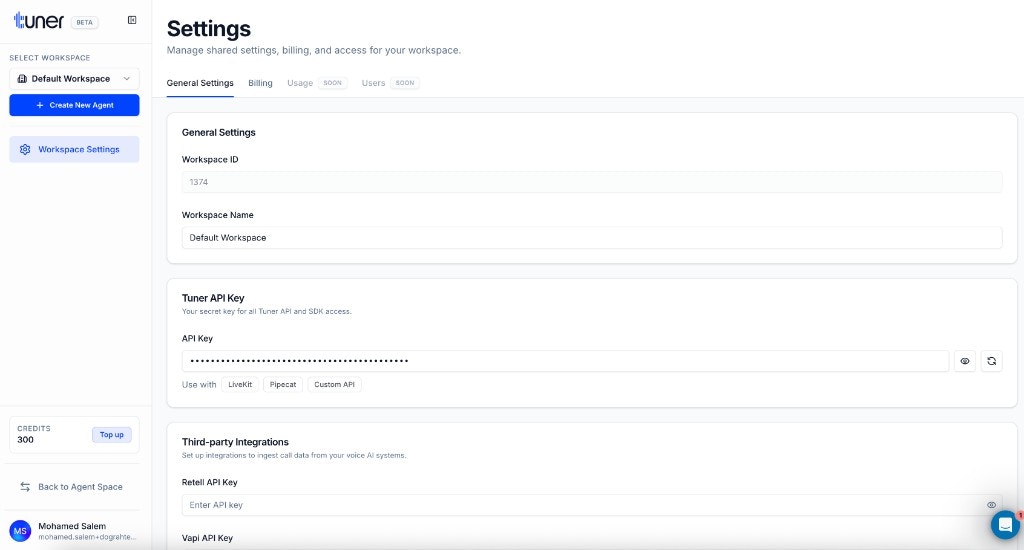
| **Workspace ID** | Workspace Settings → General Settings → Workspace ID |
| **API Key** | Workspace Settings → Tuner API Key |
**Agent Remote ID** — open Agent Settings for your agent:
**Workspace ID and API Key** — open Workspace Settings:
### 3. Add the Tuner node to your workflow
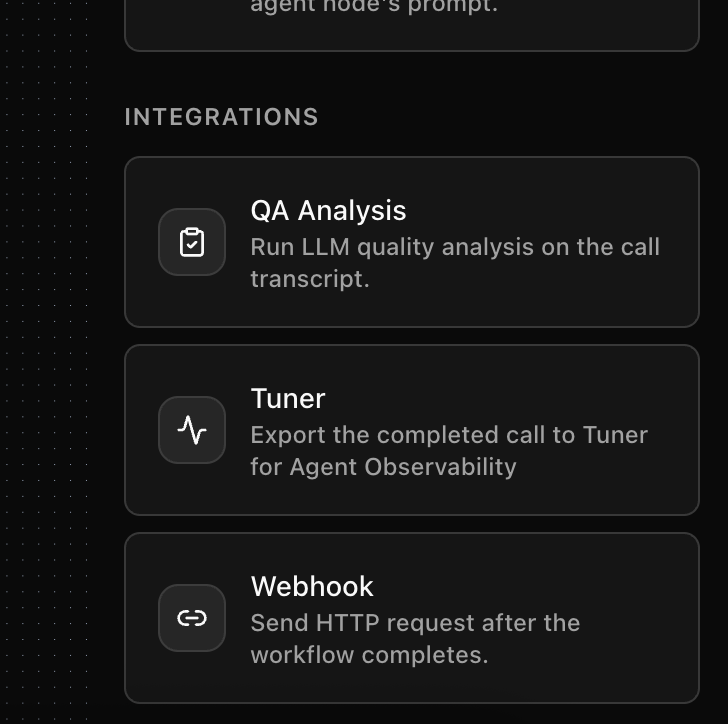
In your Dograh workflow editor, click **Add node** and scroll to the **Integrations** section. Select **Tuner**.
Scroll to **Integrations** and select **Tuner**:
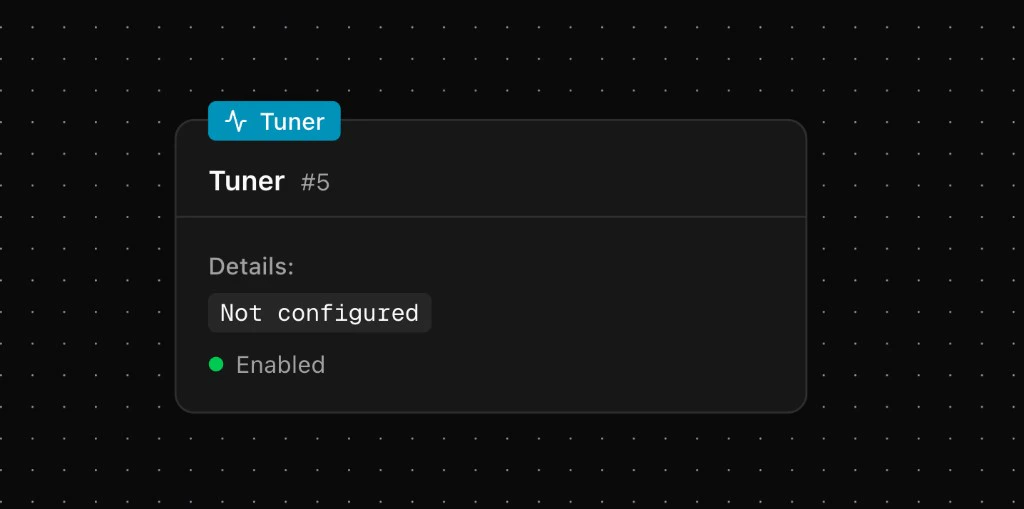
The node appears on your canvas with a **Not configured** badge:
### 4. Configure the node
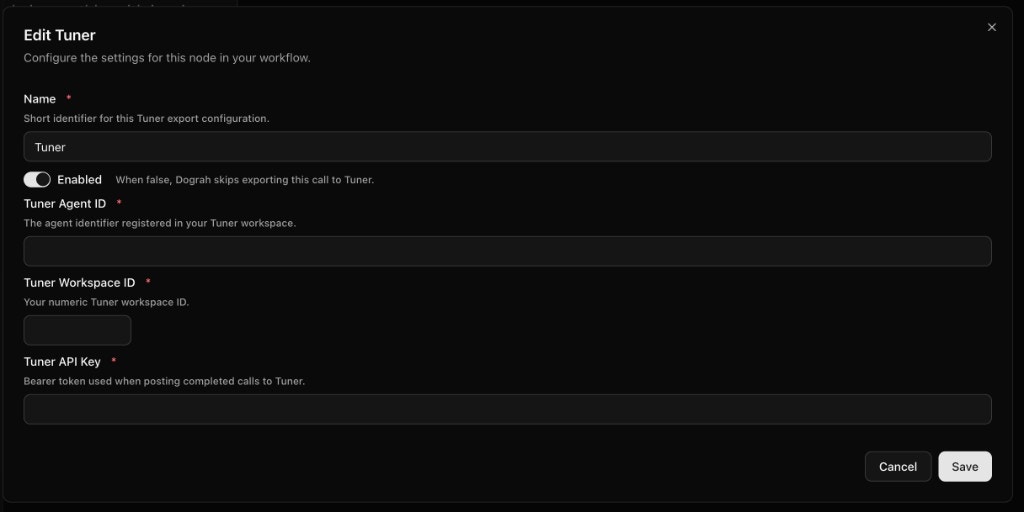
Click on the Tuner node and fill in the following fields:
* **Tuner Agent ID** — The Agent Remote ID from Tuner
* **Tuner Workspace ID** — Your numeric workspace ID
* **Tuner API Key** — Your workspace API key
* **Enabled** — Toggle on to activate the export
Click **Save**, then **Publish** your workflow.
### 5. Verify the connection
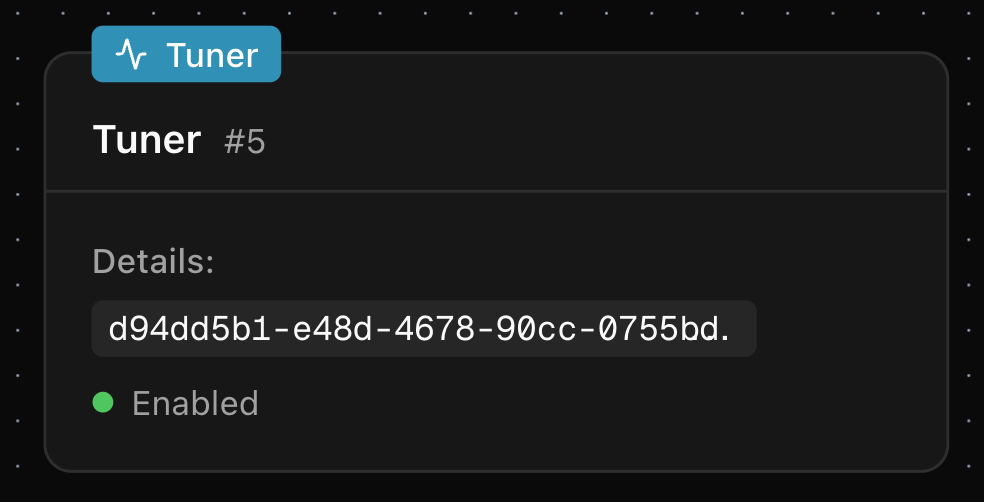
Make a test call through your agent. Once the call completes, check the **Call Logs** tab in your Tuner agent dashboard. The call should appear within a few moments.
## Disabling the integration
To temporarily stop exporting calls to Tuner, open the Tuner node configuration and toggle **Enabled** off. Your credentials are preserved — toggle it back on anytime to resume.
## Troubleshooting
| Issue | Solution |
| ---------------------------- | ----------------------------------------------------------------- |
| Calls not appearing in Tuner | Verify all three credentials are correct with no extra whitespace |
| Node shows "Not configured" | Open the node and fill in Agent ID, Workspace ID, and API Key |
| Workflow not sending data | Make sure the workflow is published, not just saved as a draft |
| Wrong agent in Tuner | Confirm the Tuner agent's Provider is set to **Dograh** |
## Learn more
* [Tuner](https://usetuner.ai) — The observability, simulation, and testing layer for voice
* [Tuner documentation](https://docs.usetuner.ai) — Complete Tuner platform docs
 ### 2. Gather your Tuner credentials
You'll need three values from your Tuner account:
| Credential | Where to find it |
| ---------------- | ---------------------------------------------------- |
| **Agent ID** | Agent Settings → Agent Connection → Agent Remote ID |
| **Workspace ID** | Workspace Settings → General Settings → Workspace ID |
| **API Key** | Workspace Settings → Tuner API Key |
**Agent Remote ID** — open Agent Settings for your agent:
### 2. Gather your Tuner credentials
You'll need three values from your Tuner account:
| Credential | Where to find it |
| ---------------- | ---------------------------------------------------- |
| **Agent ID** | Agent Settings → Agent Connection → Agent Remote ID |
| **Workspace ID** | Workspace Settings → General Settings → Workspace ID |
| **API Key** | Workspace Settings → Tuner API Key |
**Agent Remote ID** — open Agent Settings for your agent:
 **Workspace ID and API Key** — open Workspace Settings:
 ### 3. Add the Tuner node to your workflow
In your Dograh workflow editor, click **Add node** and scroll to the **Integrations** section. Select **Tuner**.
### 3. Add the Tuner node to your workflow
In your Dograh workflow editor, click **Add node** and scroll to the **Integrations** section. Select **Tuner**.
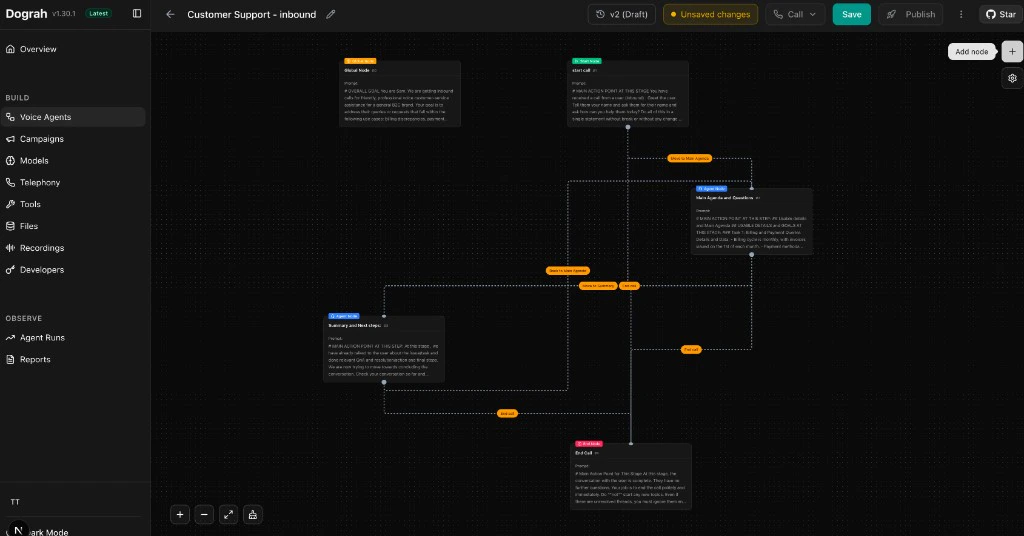 Scroll to **Integrations** and select **Tuner**:
 The node appears on your canvas with a **Not configured** badge:
 ### 4. Configure the node
Click on the Tuner node and fill in the following fields:
* **Tuner Agent ID** — The Agent Remote ID from Tuner
* **Tuner Workspace ID** — Your numeric workspace ID
* **Tuner API Key** — Your workspace API key
* **Enabled** — Toggle on to activate the export
### 4. Configure the node
Click on the Tuner node and fill in the following fields:
* **Tuner Agent ID** — The Agent Remote ID from Tuner
* **Tuner Workspace ID** — Your numeric workspace ID
* **Tuner API Key** — Your workspace API key
* **Enabled** — Toggle on to activate the export
 Click **Save**, then **Publish** your workflow.
 ### 5. Verify the connection
Make a test call through your agent. Once the call completes, check the **Call Logs** tab in your Tuner agent dashboard. The call should appear within a few moments.
## Disabling the integration
To temporarily stop exporting calls to Tuner, open the Tuner node configuration and toggle **Enabled** off. Your credentials are preserved — toggle it back on anytime to resume.
## Troubleshooting
| Issue | Solution |
| ---------------------------- | ----------------------------------------------------------------- |
| Calls not appearing in Tuner | Verify all three credentials are correct with no extra whitespace |
| Node shows "Not configured" | Open the node and fill in Agent ID, Workspace ID, and API Key |
| Workflow not sending data | Make sure the workflow is published, not just saved as a draft |
| Wrong agent in Tuner | Confirm the Tuner agent's Provider is set to **Dograh** |
## Learn more
* [Tuner](https://usetuner.ai) — The observability, simulation, and testing layer for voice
* [Tuner documentation](https://docs.usetuner.ai) — Complete Tuner platform docs
### 5. Verify the connection
Make a test call through your agent. Once the call completes, check the **Call Logs** tab in your Tuner agent dashboard. The call should appear within a few moments.
## Disabling the integration
To temporarily stop exporting calls to Tuner, open the Tuner node configuration and toggle **Enabled** off. Your credentials are preserved — toggle it back on anytime to resume.
## Troubleshooting
| Issue | Solution |
| ---------------------------- | ----------------------------------------------------------------- |
| Calls not appearing in Tuner | Verify all three credentials are correct with no extra whitespace |
| Node shows "Not configured" | Open the node and fill in Agent ID, Workspace ID, and API Key |
| Workflow not sending data | Make sure the workflow is published, not just saved as a draft |
| Wrong agent in Tuner | Confirm the Tuner agent's Provider is set to **Dograh** |
## Learn more
* [Tuner](https://usetuner.ai) — The observability, simulation, and testing layer for voice
* [Tuner documentation](https://docs.usetuner.ai) — Complete Tuner platform docs