> ## Documentation Index
> Fetch the complete documentation index at: https://docs.dograh.com/llms.txt
> Use this file to discover all available pages before exploring further.
# Paygent Integration
> Connect Dograh to Paygent — real-time cost tracking, multimodal usage monitoring, and billing for voice agents
## Overview
**Paygent** is a specialized, usage-based billing platform designed exclusively for AI voice agents.
If you are building voice agents for clients or offering them as a SaaS product, calculating margins across different AI providers (LLMs, TTS, STT, and Speech-to-Speech models) can be incredibly complex. Paygent solves this by serving as your centralized billing engine.
### How you charge your customers
Instead of building custom tracking infrastructure, you simply connect your Dograh workflow to Paygent. As your agents handle calls, Dograh passively calculates the exact multimodal token usage and audio duration.
This data is securely exported to Paygent after every call, where your custom pricing margins (rate cards) are applied. This seamless flow allows you to automatically invoice your end-users for the exact infrastructure they consume — turning your AI agents into a scalable, profitable business with zero engineering overhead.
## Prerequisites
* A [Paygent account](https://withpaygent.com)
* A Dograh voice agent workflow
## Setup
### 1. Create an agent and configure pricing in Paygent
Before connecting Dograh, you must register your agent in Paygent and define how you want to charge your customers.
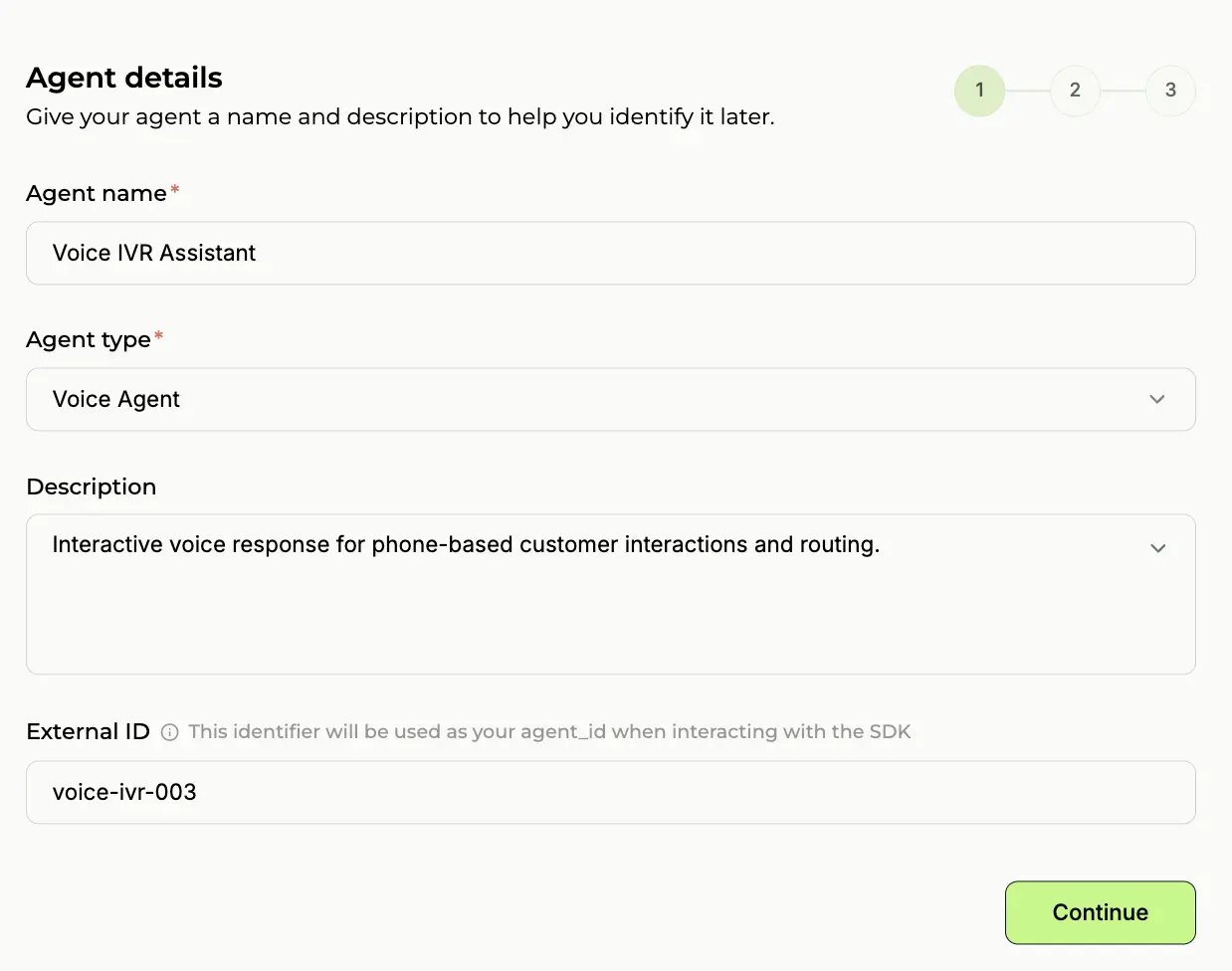
Log in to [Paygent](https://withpaygent.com) and click **Create Agent**. You will be prompted to define your agent's core details, including the **Agent Name** and **Agent ID**:
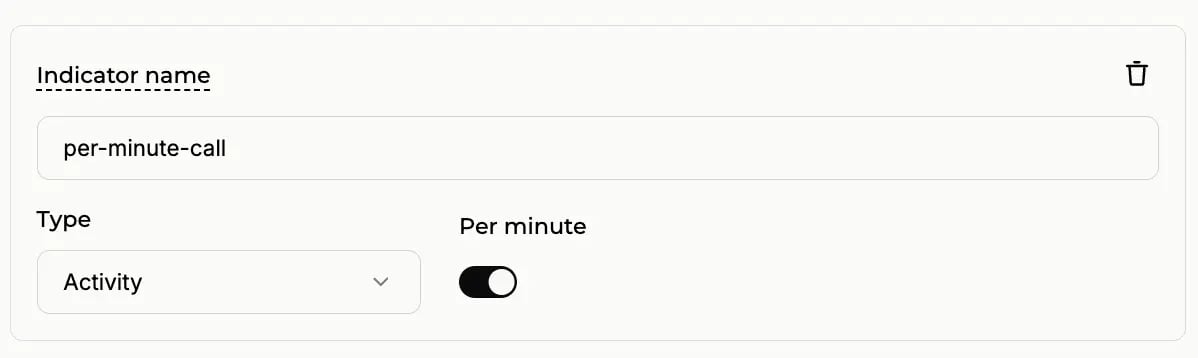
 Next, set the **Indicator Name**. This is the billing event identifier you will pass from Dograh (e.g. `per-minute-call`) to tell Paygent which rate to apply for this agent's calls:
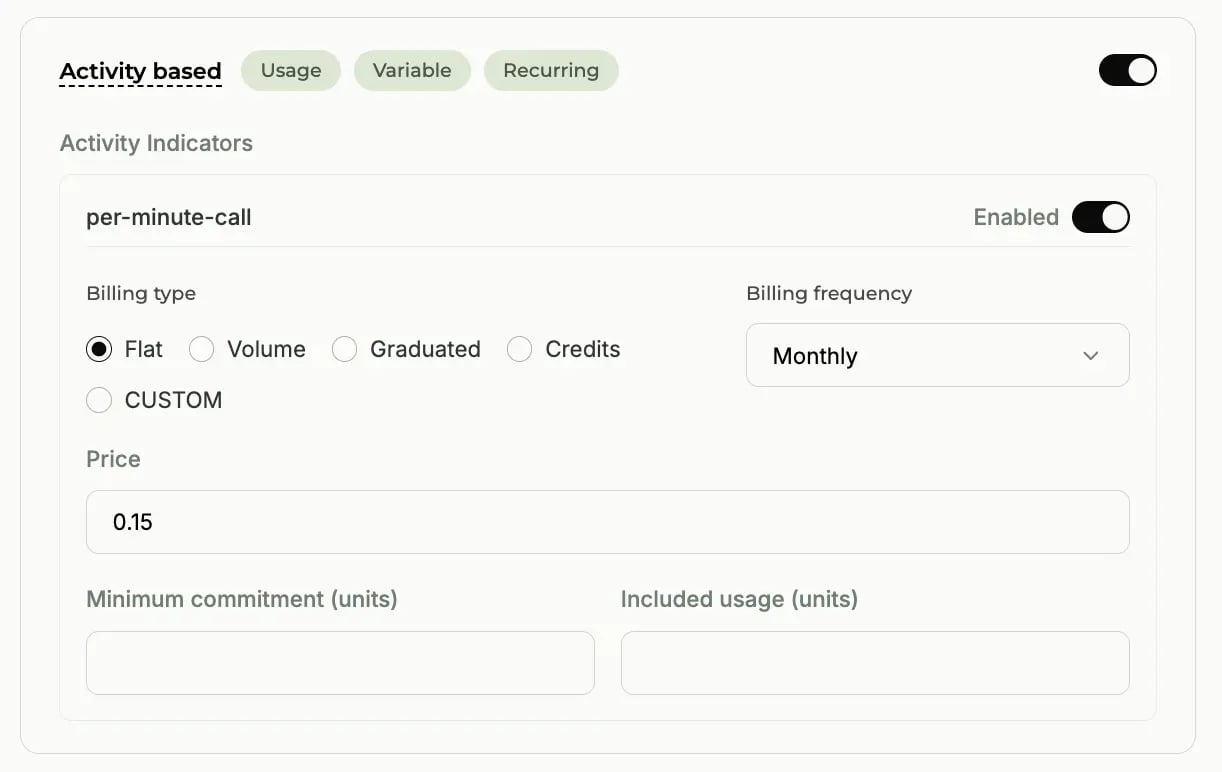
 Finally, you will configure your **Pricing Strategy**. Paygent allows you to set custom markup rates (rate cards) for every modality. You can define exact margins for Speech-to-Text (STT) seconds, LLM tokens, Text-to-Speech (TTS) characters, and total call minutes:
 Once your pricing is configured, confirm your setup. You will use the **Agent ID** and **Indicator** from this process to connect your Dograh workflow.
### 2. Gather your Paygent credentials
You'll need three core values from your Paygent dashboard to link your Dograh agent:
| Credential | Where to find it / Description |
| ------------------- | -------------------------------------------------------------------- |
| **Paygent API Key** | Your workspace API key used to authenticate requests (`pg_live_...`) |
| **Agent ID** | The unique identifier configured for your agent in Step 1 |
| **Customer ID** | Your Paygent organisation or customer ID |
### 3. Add the Paygent node to your workflow
In your Dograh workflow editor, click **Add node** and scroll to the **Integrations** section. Select **Paygent**. The node will appear on your canvas with a **Not configured** badge.
### 4. Configure the node
Click on the Paygent node and fill in the following fields:
* **Paygent API Key** — Your `pg_live_...` secret key
* **Agent ID** — The unique agent identifier from Paygent
* **Customer ID** — Your Paygent organisation ID
* **Indicator** — The billing event name (defaults to `per-minute-call`)
* **Enabled** — Toggle on to activate the export
Click **Save**, then **Publish** your workflow.
### 5. Verify the connection
Make a test call through your agent. Once the call completes, check your Paygent dashboard. The billing event and detailed multimodal usage breakdown should appear under your configured Agent ID within a few moments, with your configured pricing margins automatically applied.
## Disabling the integration
To temporarily stop exporting usage data to Paygent, open the Paygent node configuration and toggle **Enabled** off. Your credentials are preserved — toggle it back on anytime to resume tracking.
## Troubleshooting
| Issue | Solution |
| ----------------------------------- | --------------------------------------------------------------------------------------------------------------- |
| Usage data not appearing in Paygent | Verify all credentials are correct with no extra whitespace |
| Node shows "Not configured" | Open the node and fill in API Key, Agent ID, Customer ID, and Indicator |
| Workflow not sending data | Make sure the workflow is published, not just saved as a draft |
| Missing realtime STS tokens | For OpenAI Realtime or Google Live models, verify the pipeline is running in realtime mode (`is_realtime=True`) |
## Learn more
* [Paygent](https://withpaygent.com) — Usage-based billing platform for AI agents
Once your pricing is configured, confirm your setup. You will use the **Agent ID** and **Indicator** from this process to connect your Dograh workflow.
### 2. Gather your Paygent credentials
You'll need three core values from your Paygent dashboard to link your Dograh agent:
| Credential | Where to find it / Description |
| ------------------- | -------------------------------------------------------------------- |
| **Paygent API Key** | Your workspace API key used to authenticate requests (`pg_live_...`) |
| **Agent ID** | The unique identifier configured for your agent in Step 1 |
| **Customer ID** | Your Paygent organisation or customer ID |
### 3. Add the Paygent node to your workflow
In your Dograh workflow editor, click **Add node** and scroll to the **Integrations** section. Select **Paygent**. The node will appear on your canvas with a **Not configured** badge.
### 4. Configure the node
Click on the Paygent node and fill in the following fields:
* **Paygent API Key** — Your `pg_live_...` secret key
* **Agent ID** — The unique agent identifier from Paygent
* **Customer ID** — Your Paygent organisation ID
* **Indicator** — The billing event name (defaults to `per-minute-call`)
* **Enabled** — Toggle on to activate the export
Click **Save**, then **Publish** your workflow.
### 5. Verify the connection
Make a test call through your agent. Once the call completes, check your Paygent dashboard. The billing event and detailed multimodal usage breakdown should appear under your configured Agent ID within a few moments, with your configured pricing margins automatically applied.
## Disabling the integration
To temporarily stop exporting usage data to Paygent, open the Paygent node configuration and toggle **Enabled** off. Your credentials are preserved — toggle it back on anytime to resume tracking.
## Troubleshooting
| Issue | Solution |
| ----------------------------------- | --------------------------------------------------------------------------------------------------------------- |
| Usage data not appearing in Paygent | Verify all credentials are correct with no extra whitespace |
| Node shows "Not configured" | Open the node and fill in API Key, Agent ID, Customer ID, and Indicator |
| Workflow not sending data | Make sure the workflow is published, not just saved as a draft |
| Missing realtime STS tokens | For OpenAI Realtime or Google Live models, verify the pipeline is running in realtime mode (`is_realtime=True`) |
## Learn more
* [Paygent](https://withpaygent.com) — Usage-based billing platform for AI agents